Keep your Brain healthy
Brain Health checks that your notes follow your Brain’s rules. It finds broken links, missing details and copies of the same note, and drafts a fix for each.
Open Brain Health
Open Settings and choose Brain Health under Workspace. The top line says how the Brain is doing, such as Needs fixing, with the number of notes and when it was last checked. HTO checks every week, and the workspace’s owners hear when the Brain gets worse. Press Check now to check at once.
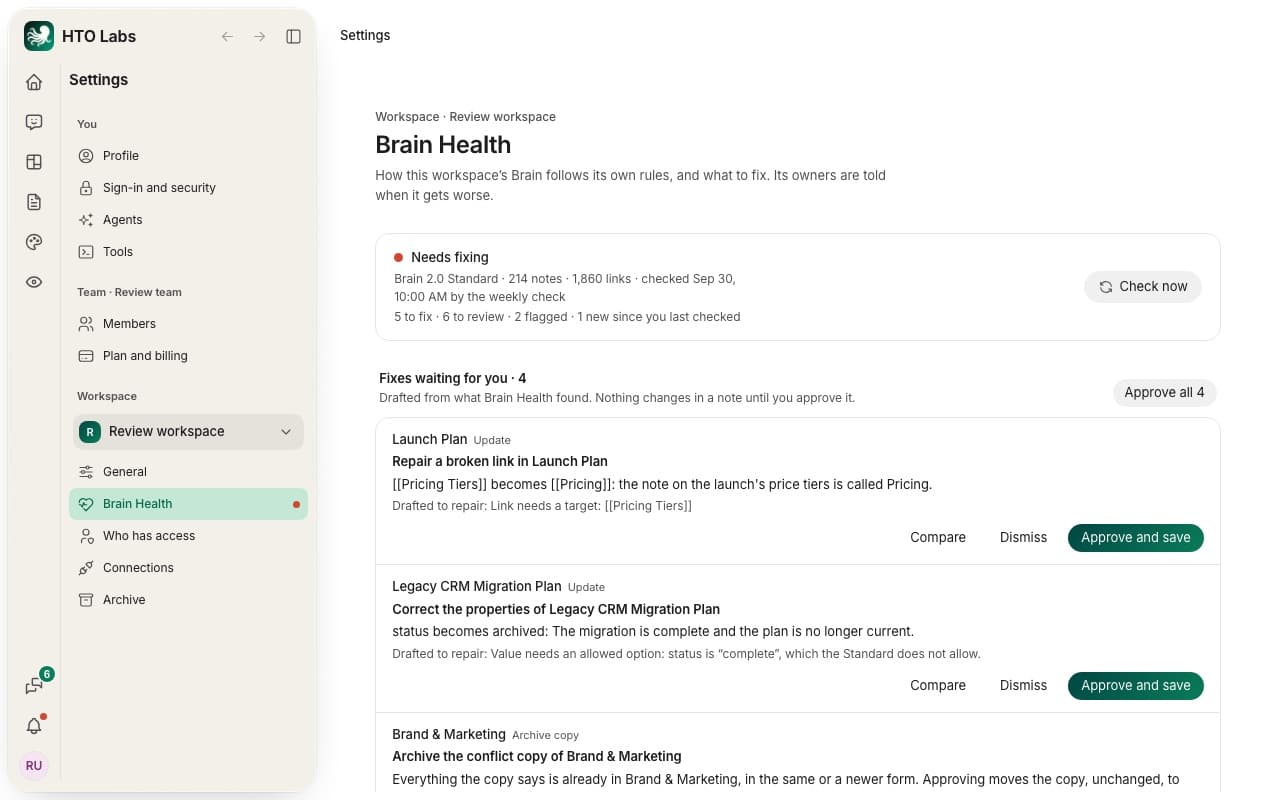
Fixes waiting for you
HTO drafts fixes from what it found. Each one names the note, what changes and the problem it repairs. Nothing changes in a note until you approve it.
- Compare shows the note before and after.
- Approve and save makes the change. A few fixes move or archive a file, and their button says so.
- Dismiss drops the fix.
- Approve all approves every waiting fix in one go.
Everything it found
Below the fixes, Brain Health lists every problem, grouped by kind. The tabs at the top filter the list: All open, Need fixing, To review, Flagged and Ignored. On a problem with no fix yet, press Draft a fix. Press Ignore when the note is right as it is.
Tip: new notes from Scout also wait here until you review them.
Still stuck? Write to us, and a person at HTO & Beyond answers.