Add things to the board
The board is the room’s shared canvas. Everyone in the room sees the same cards, and so does every chat in it.
The bar at the foot
Pick a tile in the bar, then click on the board where the thing should go.
- Sticky note adds a short note in a color.
- Note adds a longer note you write in. It can also be a To-do.
- Insert adds a Link, a Photo, a File or an item From Studio.
- Create makes Slides, a Document, a Design or an Artifact with the room’s chat. It opens in Studio, and its card stays on the board.
- Shapes and Column help you lay out the board.
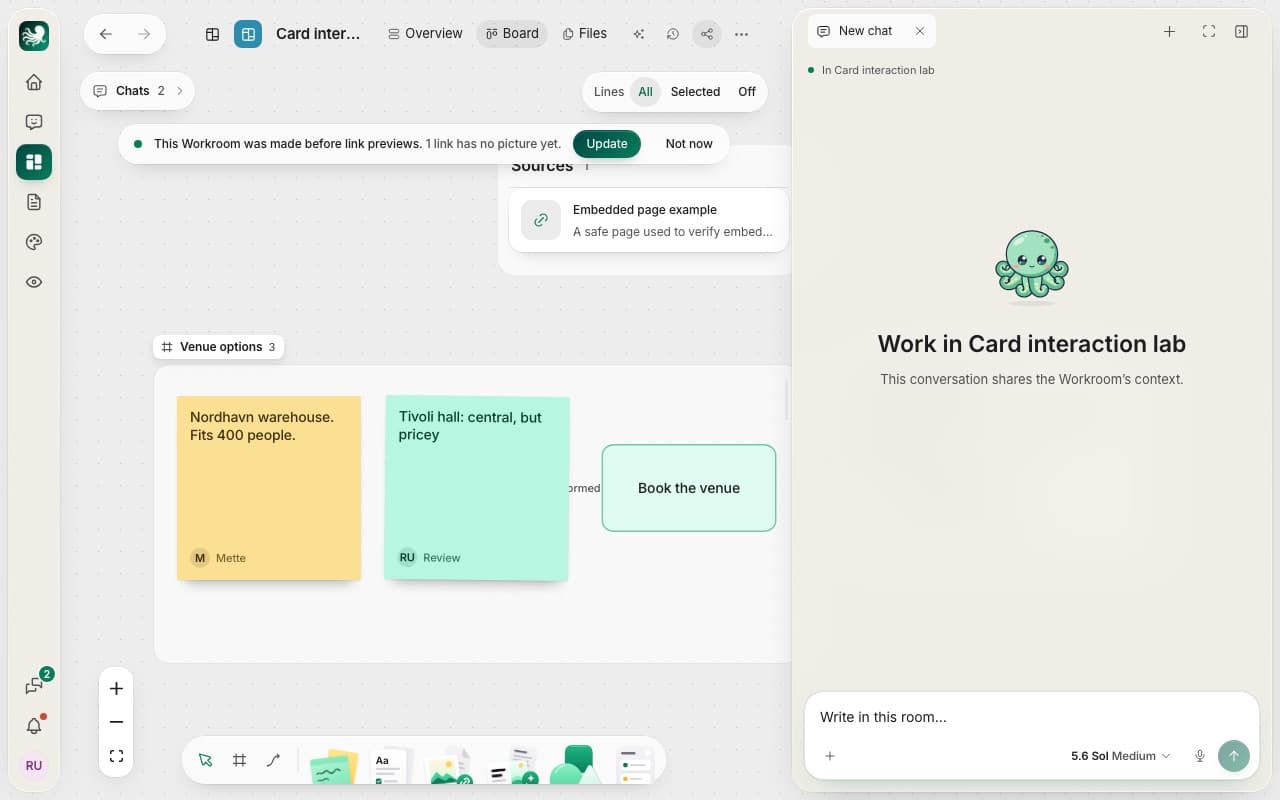
Columns
A column keeps related cards together, such as “Venue options”. While you place or drag something, each column that takes it shows a dashed edge. Drop it on a column, and the column makes room at that spot.
Connect cards
Pick Connect in the bar and draw a line from one card to another. Any two cards can be connected. Lines at the top of the board shows All lines, only those of the Selected card, or turns them Off.
Tidy up
Tidy up in the top bar suggests connections between cards and descriptions for cards that lack one. Press the tick to accept a suggestion, or the cross to reject it. Nothing changes until you accept. It also lists what someone has to fix, such as a missing purpose.
Still stuck? Write to us, and a person at HTO & Beyond answers.