Let HTO read your folder
Scout is the part of HTO that reads a folder. It looks at your files, plans your Brain’s first notes and links each note to the files it came from. Your files stay where they are, unchanged.
HTO asks first
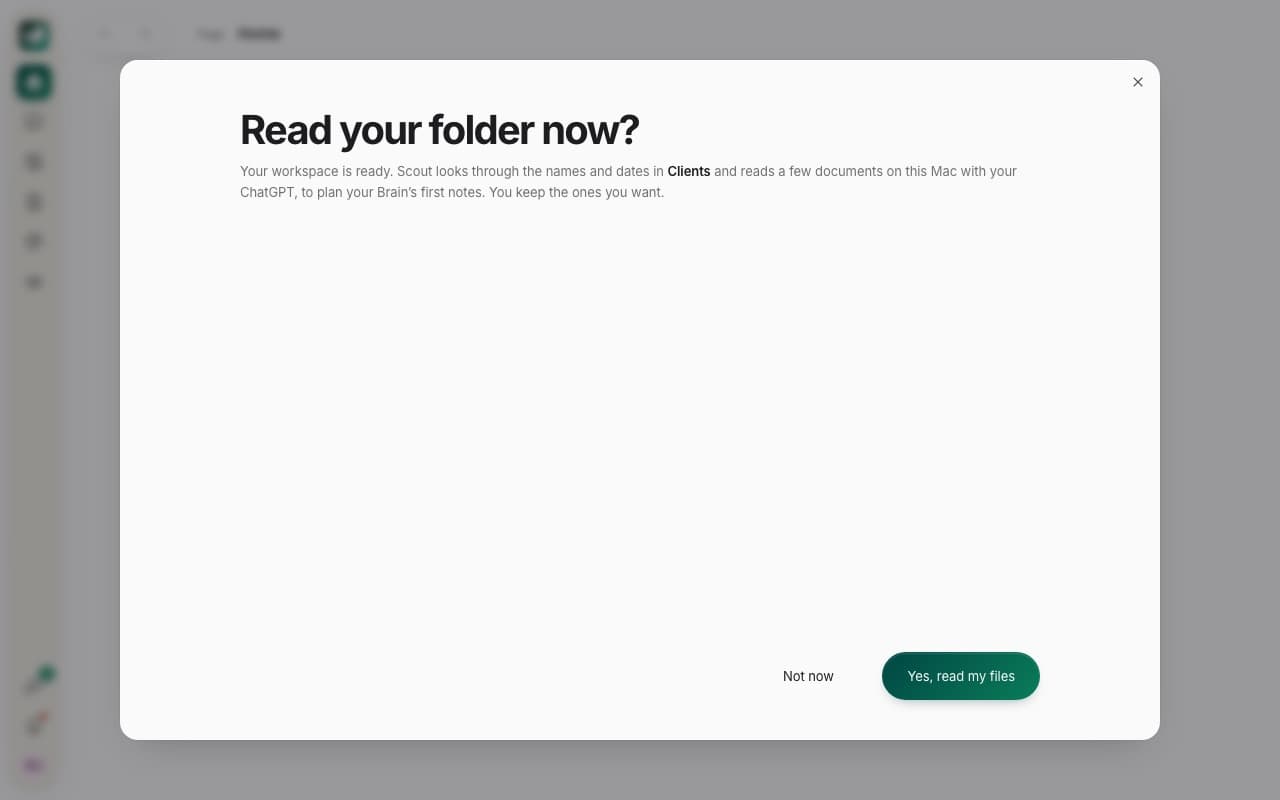
When your workspace is ready, HTO Labs asks Read your folder now? Scout looks through the names and dates in your folder and reads a few documents with your own AI, on your Mac. Press Yes, read my files, or Not now to do it later.
What Scout found
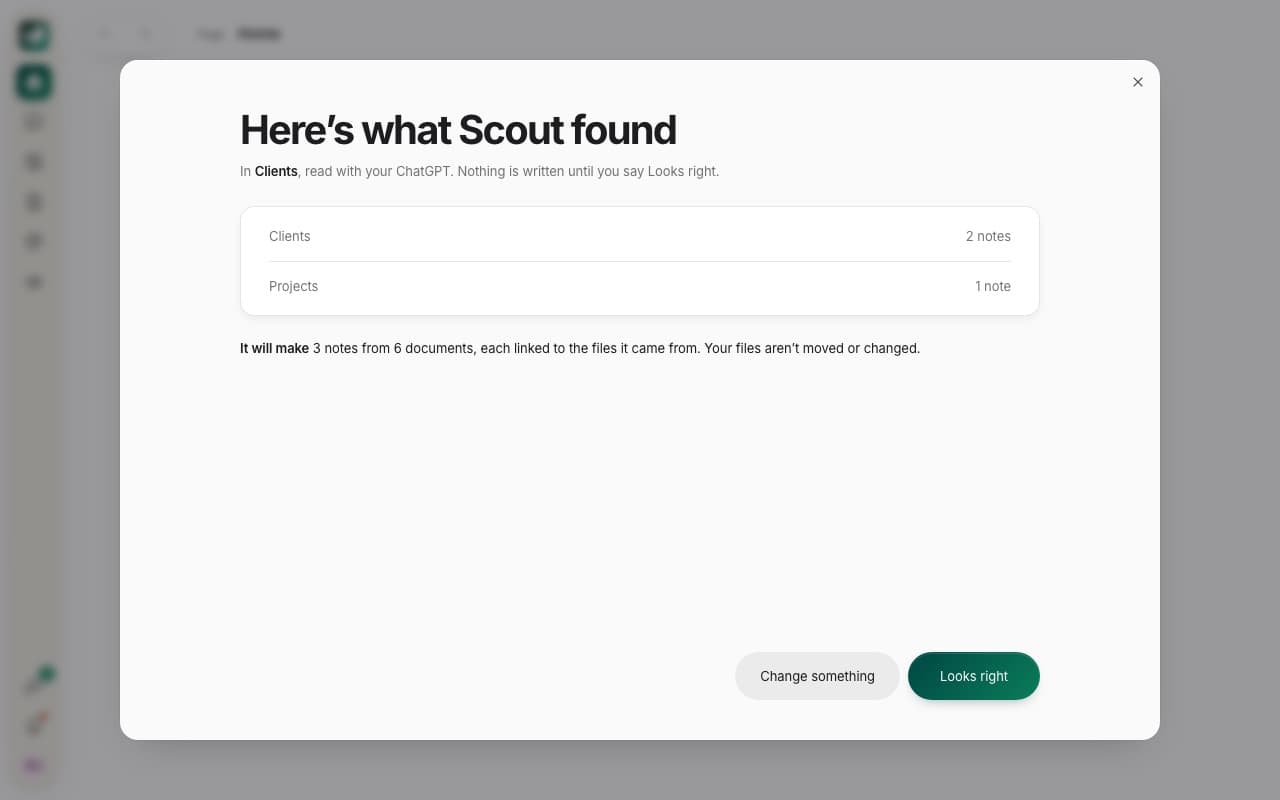
When Scout is done, it shows how many notes it will make in each folder of your Brain. Press Looks right to make them, or Change something to tell it what to do differently. Nothing is written until you say Looks right.
After that
Home says Your workspace is ready. Scout goes on reading the rest of your folder in the background and shows how far it has come. Press Pause to stop it for now. New notes wait in Brain Health, where you press Review to keep the ones you want.
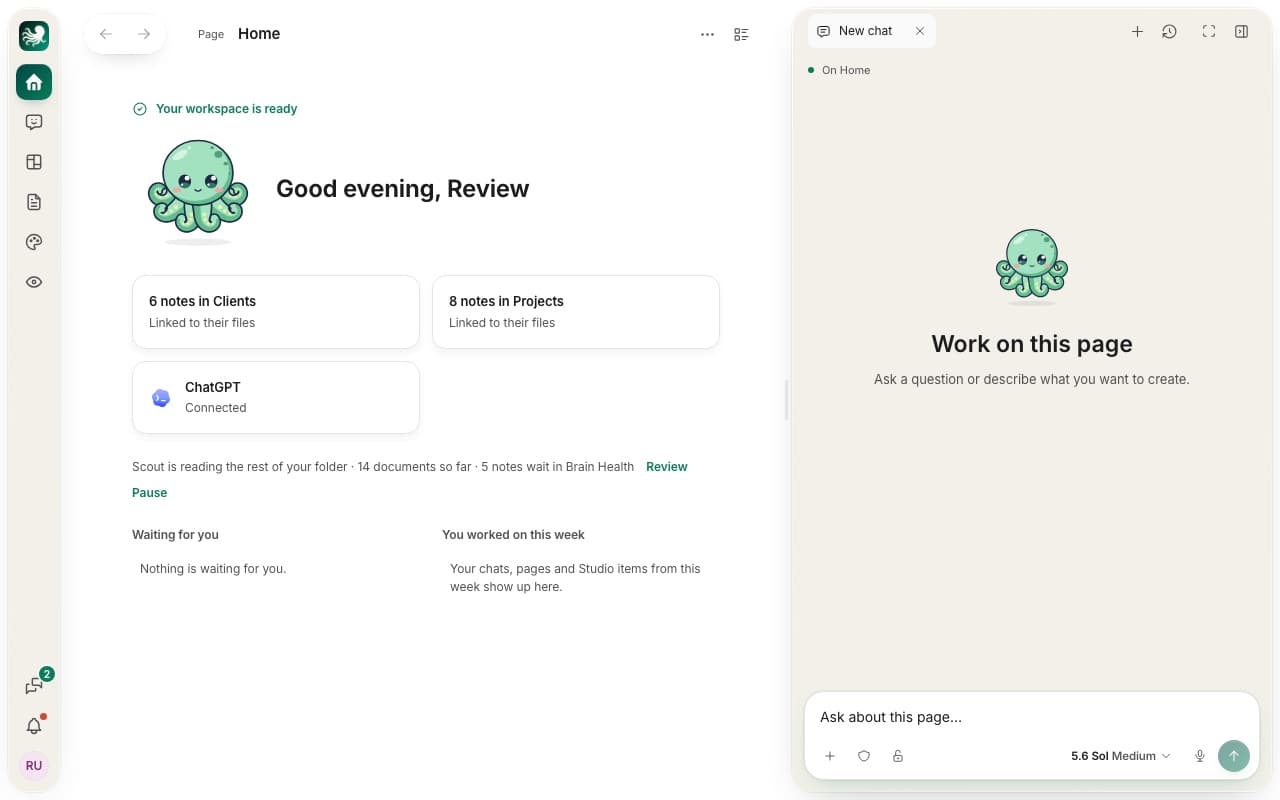
Tip: try the chat on the right straight away. Ask something like “What are our biggest client projects this year?”
Still stuck? Write to us, and a person at HTO & Beyond answers.