Connect your accounts
A connected account lets HTO Labs use one of your services, such as your Airtable bases or your Outlook mail. Your chats can then read from it, and your pages can show its data.
What you can connect
| Service | What HTO Labs can use |
|---|---|
| Airtable | Records, tables and interfaces in the bases you choose. |
| Canva | Your designs, to find, make, change and export. |
| GitHub | Repositories, issues, pull requests and releases. |
| Google Search Console | Search traffic, sitemaps and indexing for your sites. |
| Meta | Facebook Pages, Instagram professional accounts and ad accounts. |
| Microsoft 365 | Outlook, calendars, contacts, OneDrive, SharePoint, Teams and Excel, with your work account. |
| Microsoft Intune | Managed devices, policies and apps, for administrators. |
| Resend | Email, contacts, broadcasts, domains and logs. |
| Supabase | Database, logs, functions and storage for one project. |
| Vercel | Projects, deployments, build logs and domains. |
Custom API and Custom MCP, at the foot of the list, connect any other service by its web address. The service’s own help gives you the address, and a key if it needs one.
Add a connection
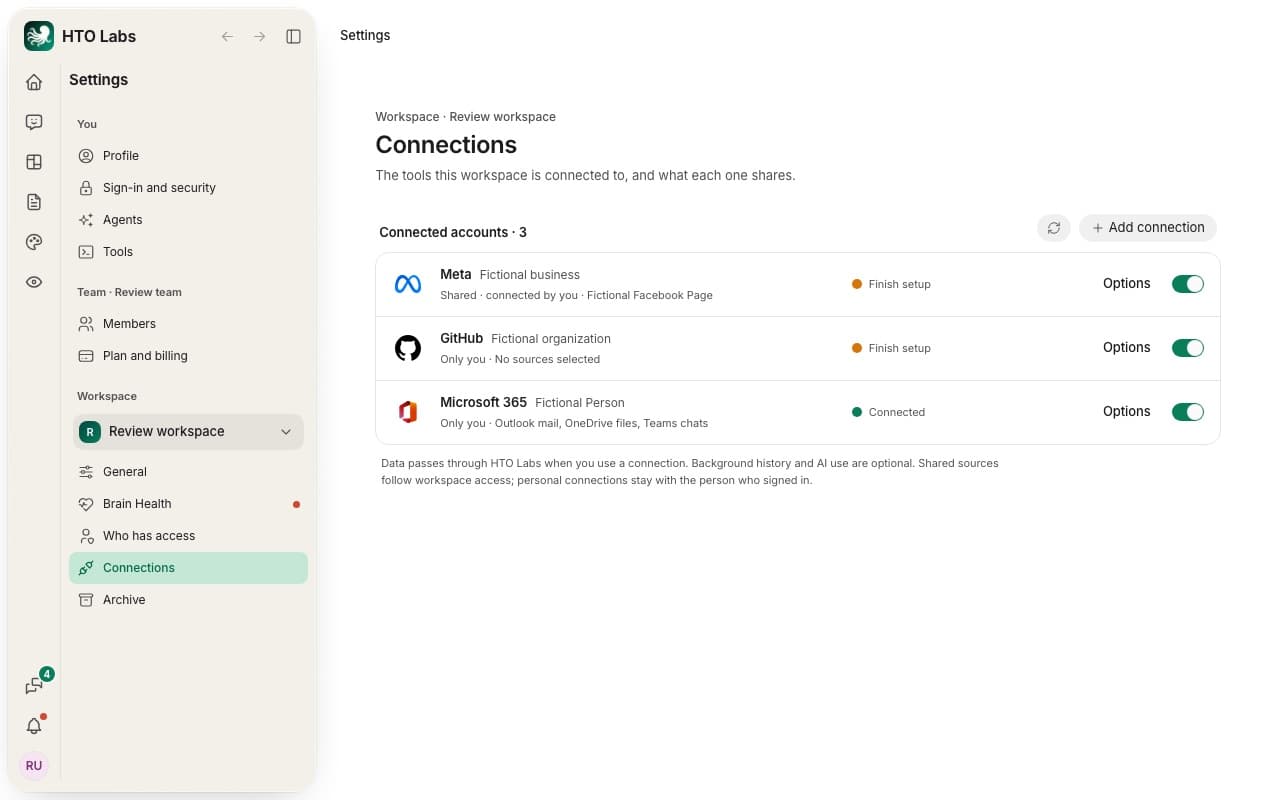
Open Settings › Connections. It lists the accounts connected to this workspace.
Press Add connection, then the service’s button, such as Connect Airtable. Supabase asks for your project ref first, and Vercel for an access token from your Vercel account.
Your browser opens the service’s own sign-in. Sign in and allow HTO Labs. Back in HTO Labs, it says Connection authorized. Review its access in Options.
You add connections in the Mac app or on the web. Canva connects from the Mac app.
Choose what it may use
Press Options on a connection’s row. Under Sources, choose what HTO Labs may use, such as which Facebook Pages. Under What HTO Labs may use, switch on what it may read and what it may change. Changes save as you make them. Use in AI chats decides whether chats may use the account. The switch at the end of the row turns the whole connection on or off.
Status, and Disconnect
A small dot beside each connection shows its status.
- Connected (green): it works.
- Finish setup (yellow): choose a source or a feature in Options.
- Offline (red): HTO Labs cannot reach the account. Press Reconnect to sign in again.
To stop using an account, open Options and press Disconnect.
Still stuck? Write to us, and a person at HTO & Beyond answers.