Share a page or publish it to the web
Share at the top of a page decides who in your workspace can open it. Its Web link tab gives the page a link on htolabs.com that anyone can open.
Add people to a page
Open the page and press Share. Under People on this page, press Add people. Pick one or more people from your workspace, choose their role and press Add. The roles are Owner, Can edit and Can view.
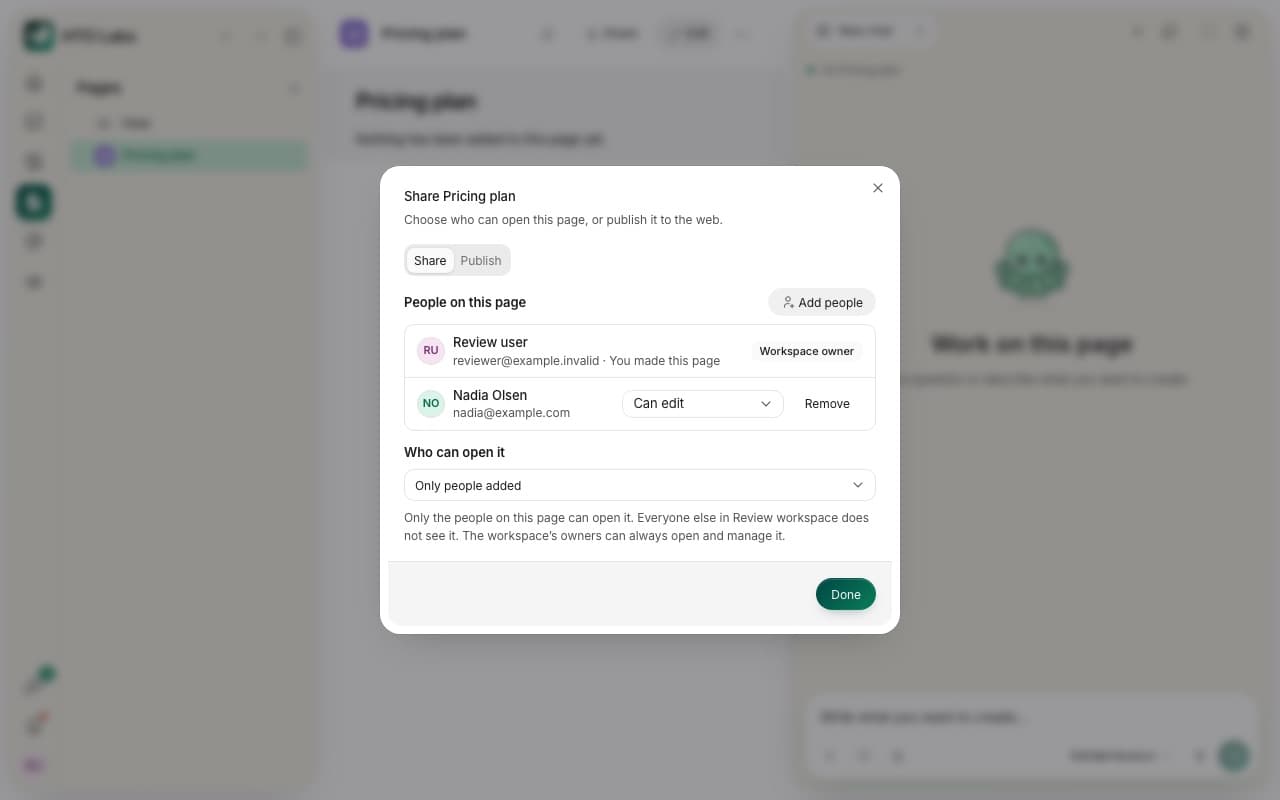
Who can open it
Under Who can open it, choose Everyone in your workspace, or Only people added.
- Everyone in your workspace: each person opens the page as their workspace access allows. People you added get the role you gave them.
- Only people added: the people on the page open it. The rest of the workspace does not see it.
The workspace’s owners can always open and manage every page. The page’s owners make these choices: the person who made it, and the workspace’s owners.
Publish to the web
Open the Web link tab and press Publish to the web. HTO Labs makes a link on htolabs.com. Visitors see this page on its own, with nothing else of HTO Labs. Press Copy to copy the link and send it to anyone. Only the page’s owners can publish it.
Publish with a code
For a page only some people should see, press Publish with a code. Visitors then need the link and a code. You copy the code beside the link. New code makes a fresh code and stops the old one at once. Unpublish takes the link down, and it stops working straight away.
Tip: a published page that shows data from a connected account shows that data to its visitors too, read in your name. Check what the page shows before you send the link.
Still stuck? Write to us, and a person at HTO & Beyond answers.