Download HTO Labs and sign in
HTO Labs is an app for your Mac. You download it once, sign in through your browser, and the app keeps you signed in.
Download the app
The Mac app needs a Mac with Apple silicon (M1 or newer) and macOS 12 or later. After you sign up, the page “Where do you start?” has a Download for Mac button. You can also download it here.
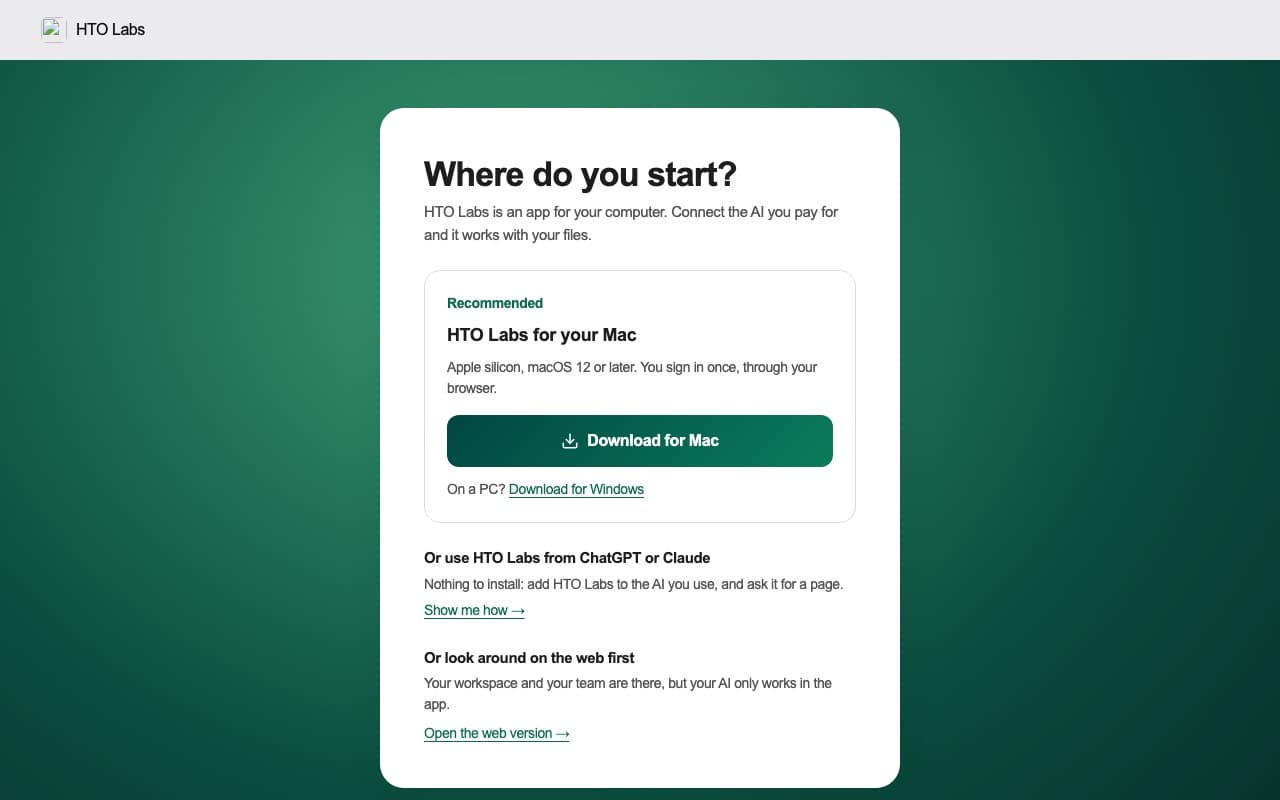
Your Mac saves a zip file in Downloads. Double-click it, and the HTO Labs app appears beside it.
Drag HTO Labs into your Applications folder.
Your Mac asks once whether to open an app from the internet. Press Open. Apple has checked the app, and we at HTO & Beyond sign every version.
Sign in
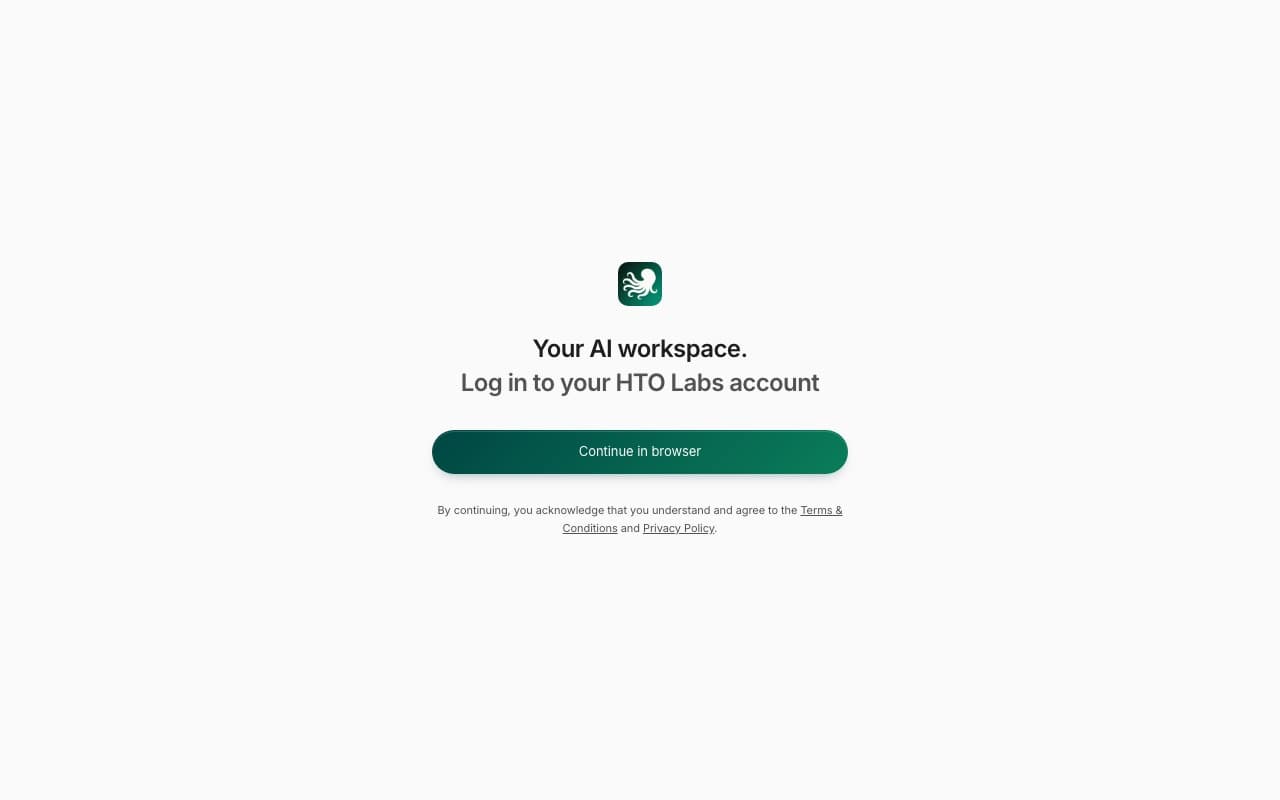
The app opens with Continue in browser. Press it, and your browser opens htolabs.com, where you sign in as you did when you signed up. The browser then says “You’re signed in”. Go back to the app, and close the browser tab.
HTO Labs on the web
Your workspaces and your team are also on the web at htolabs.com. The web is good for looking things up and commenting. Your AI works in the Mac app, because it runs through the AI’s own app on your Mac.
Still stuck? Write to us, and a person at HTO & Beyond answers.