Start a Workroom
A Workroom is a shared room for one piece of work, such as a product launch or a client project. Its chats, decisions and outputs all gather in one place.
What a Workroom is
Each Workroom has a board where you and your team lay out notes, links, files and stickies. It has its own chats with your AI. Every chat in the room reads what is on the board, so each chat starts from the work as it stands.
Make a Workroom
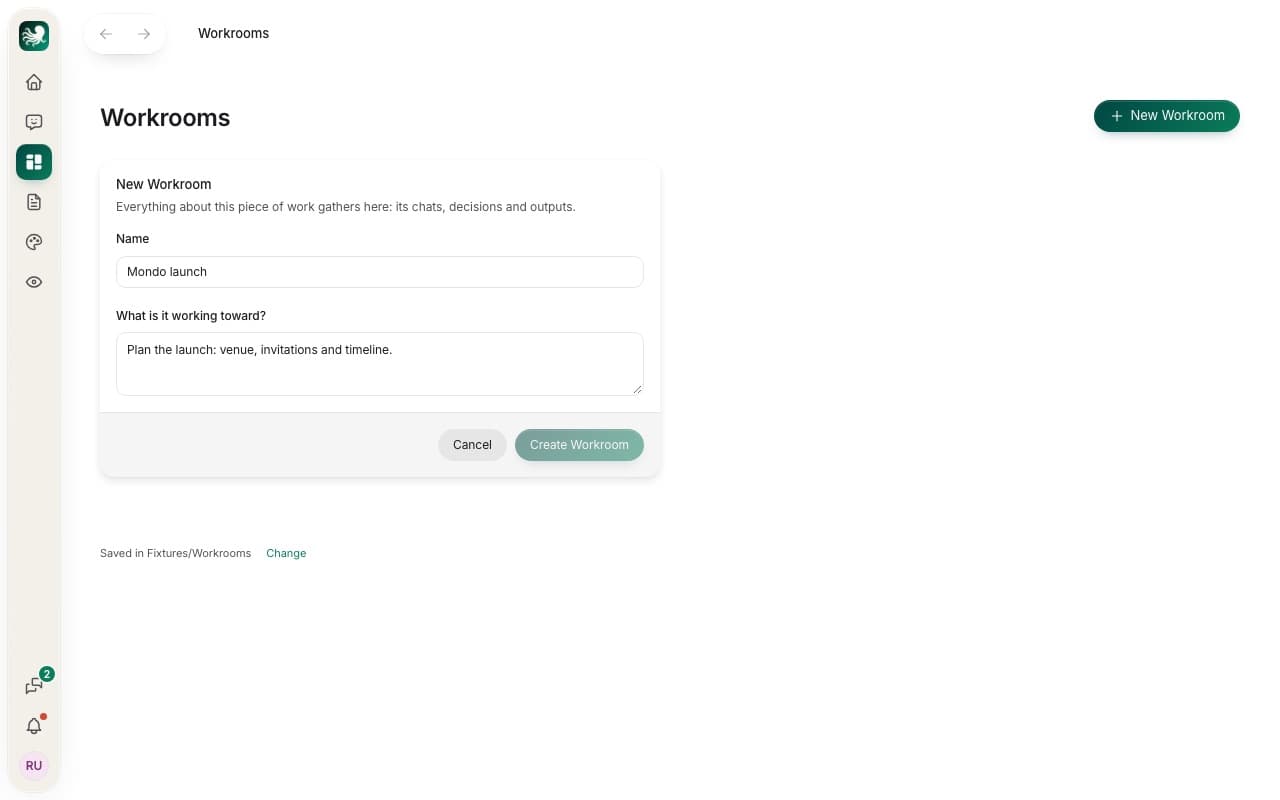
Press Workrooms in the left bar, then New Workroom.
Write a Name and fill in What is it working toward?, for example “Plan the launch: venue, invitations and timeline”.
Press Create Workroom. The room opens, made in your name, so you are its owner.
Overview, Board and Files
The top bar has three views. Overview shows the room’s cover, its purpose and goal, the next steps and its files and links. Board is the shared canvas. Files lists what the room made under Made here and what it draws on under Sources.
The chat sits on the right. Write in it to work with your AI inside the room. Workroom chats always run without Full access, because they read what everyone in the room added.
Workrooms on the web
On htolabs.com you can open every Workroom, read its board, files, Activity and chats. You can comment there too when your role allows it. To change a room or chat in it, use the Mac app.
Tip: to bring a Workroom to your team, read Invite people to a Workroom.
Still stuck? Write to us, and a person at HTO & Beyond answers.