Connect your AI
HTO Labs works through the AI you already pay for: ChatGPT, Claude, Gemini or Grok. It uses that AI’s own app on your Mac, on your own plan, so you pay your AI company and we add no AI bill.
Pick your AI
Right after you create your workspace, HTO Labs asks which AI to use. Choose the one you have a plan with. Each one says whether it is already on your Mac.
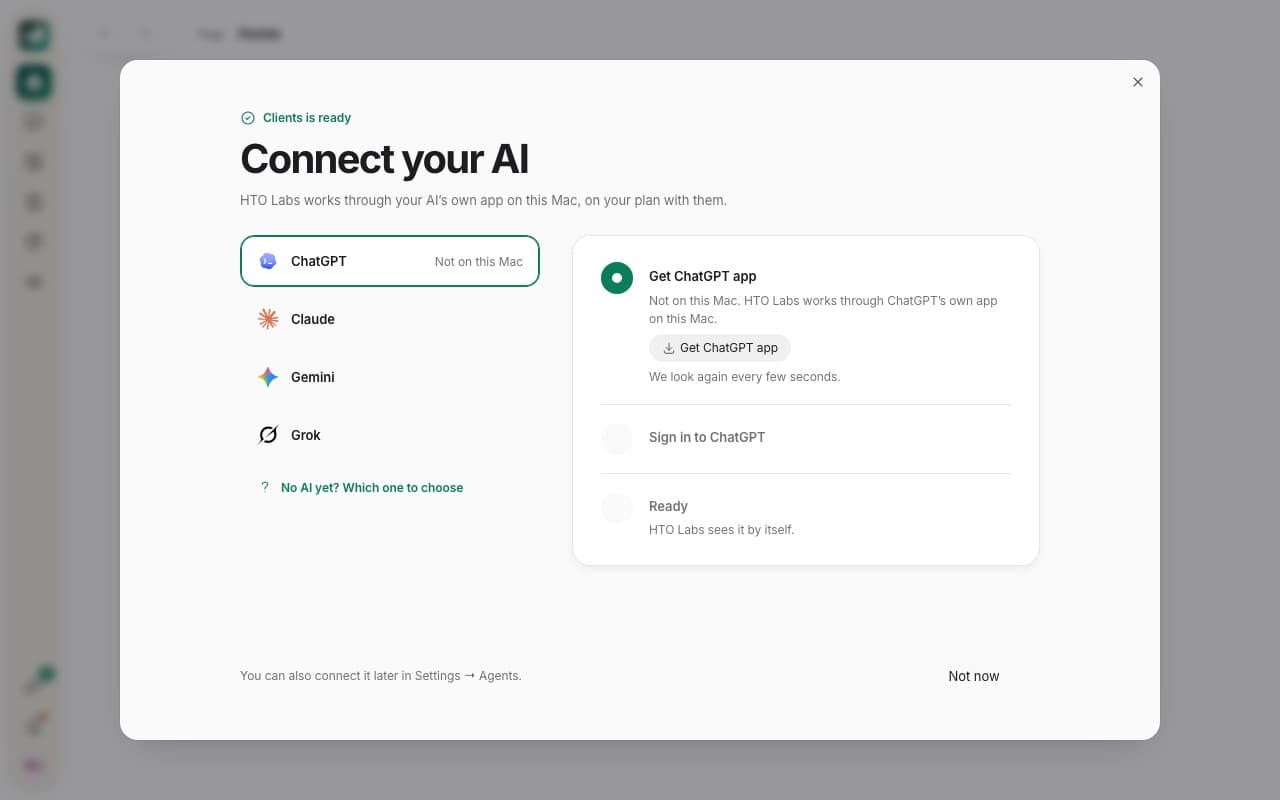
Three steps
If the AI’s app is missing, press Get ChatGPT app (or Claude, Gemini or Grok) and install it. HTO Labs looks again every few seconds, so it notices by itself.
Sign in with the account that has your plan. The sign-in happens in the AI company’s own window, so your password goes only to them.
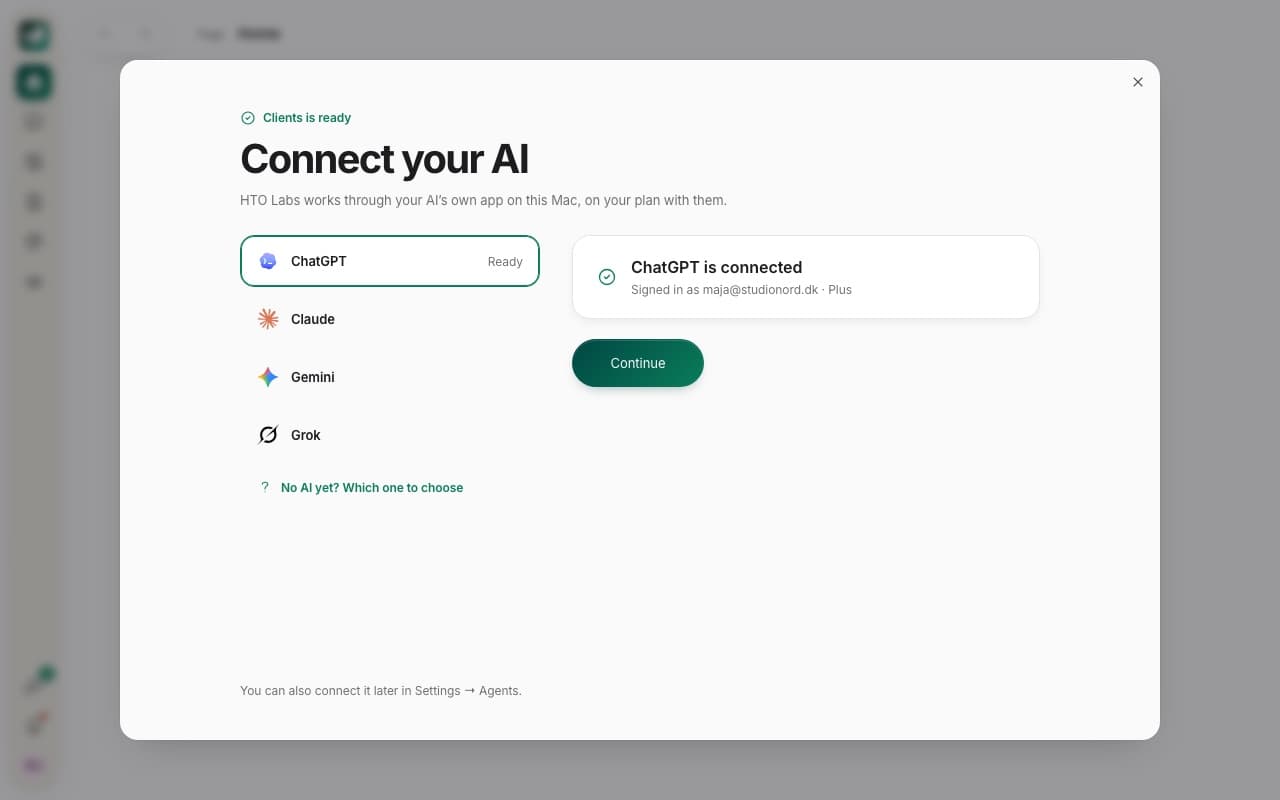
When HTO Labs sees your AI, it says ChatGPT is connected and shows the account it uses. Press Continue.
Which one to choose
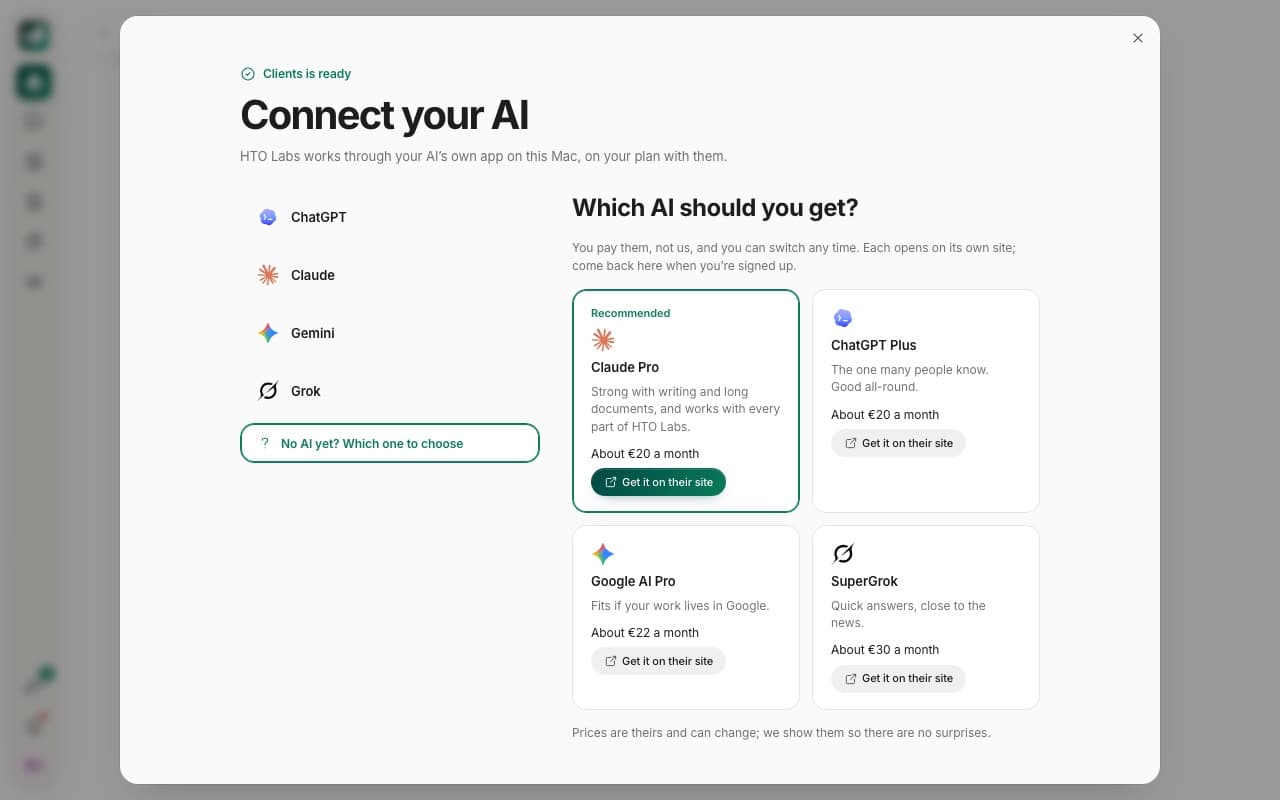
No AI yet? Press No AI yet? Which one to choose. You pay the AI company, and you can switch any time. These are their prices as we write this, and they can change.
| Plan | Good for | A month, about |
|---|---|---|
| Claude Pro | Writing and long documents. Works with every part of HTO Labs, so we recommend it. | €20 |
| ChatGPT Plus | The one many people know. Good all-round. | €20 |
| Google AI Pro | Fits if your work lives in Google. | €22 |
| SuperGrok | Quick answers, close to the news. | €30 |
Change it later
Skipped this step, or want another AI? Open Settings › Agents. Each AI has its own row, where you connect it or disconnect it. You can connect more than one and pick the AI for each chat.
If it does not connect
- It still says “Not on this Mac”. Open the AI’s app once yourself, then wait a few seconds.
- You signed in, and HTO Labs still waits. Check that you signed in with the account that pays for the plan.
Still stuck? Write to us, and a person at HTO & Beyond answers.