Make your first workspace
A workspace holds the work of one company, team or project. It has its own Brain, its own pages and its own chats, next to the files you already have.
Two questions first
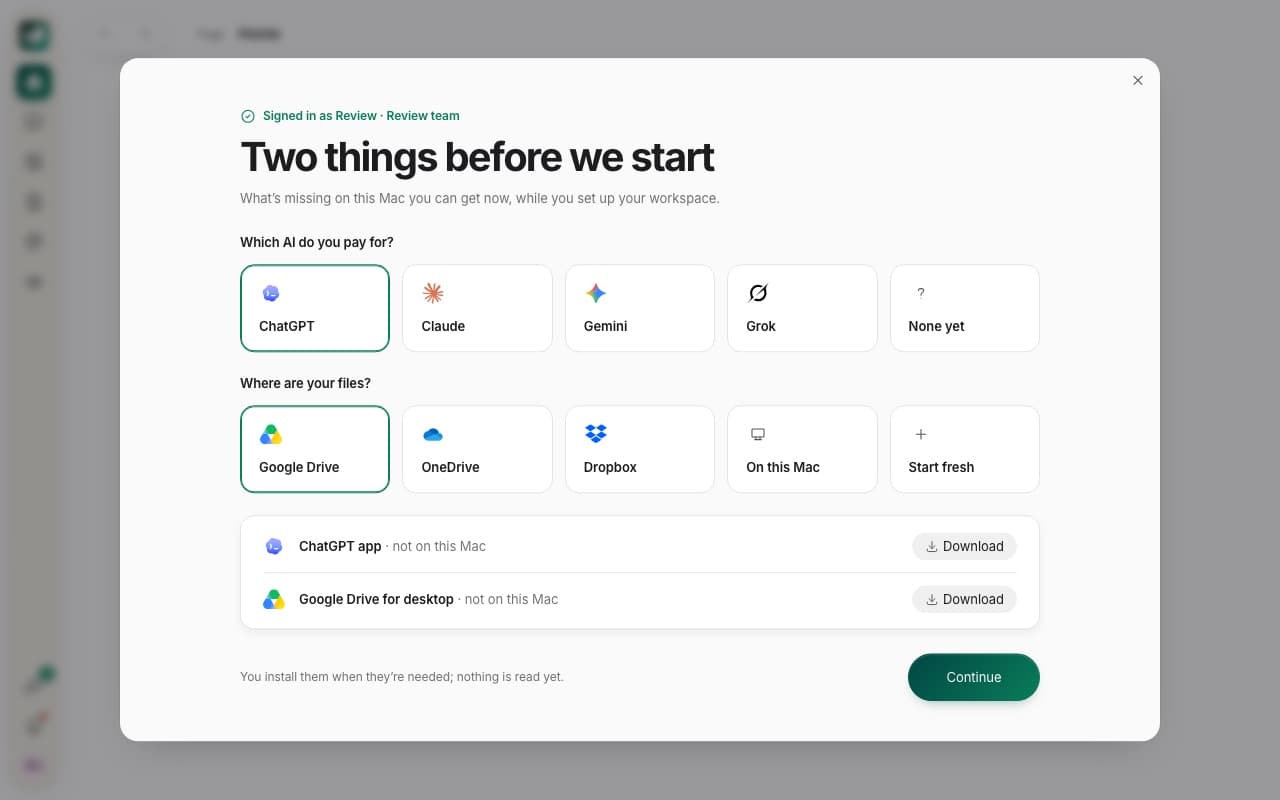
When you first open HTO Labs, it asks which AI you pay for and where your files are: Google Drive, OneDrive, Dropbox or this Mac. If something is missing on your Mac, such as the Google Drive app, HTO Labs shows a Download button for it. HTO Labs reads nothing yet.
Your folder, or start fresh
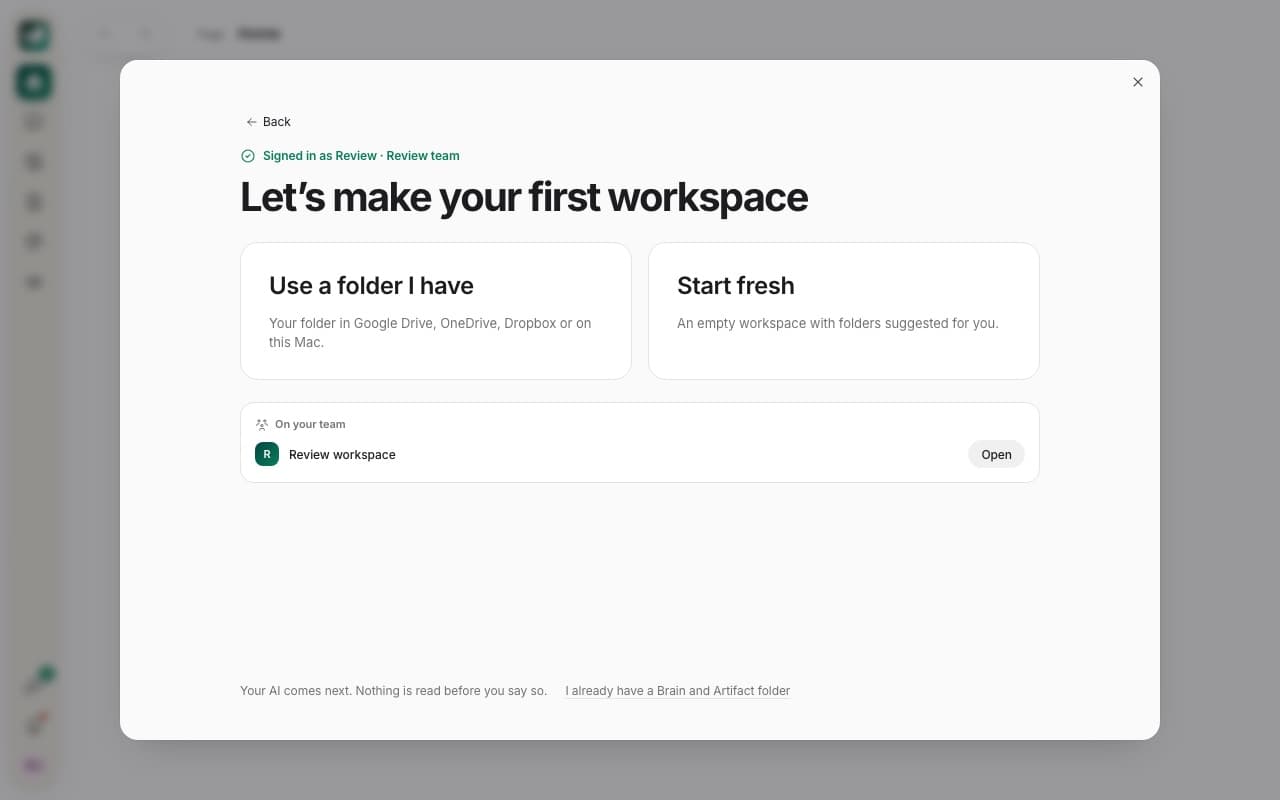
Choose Use a folder I have to build the workspace around a folder you already work in, such as your client folder in Google Drive. Choose Start fresh for an empty workspace. Your files stay where they are in both cases.
What is it for?
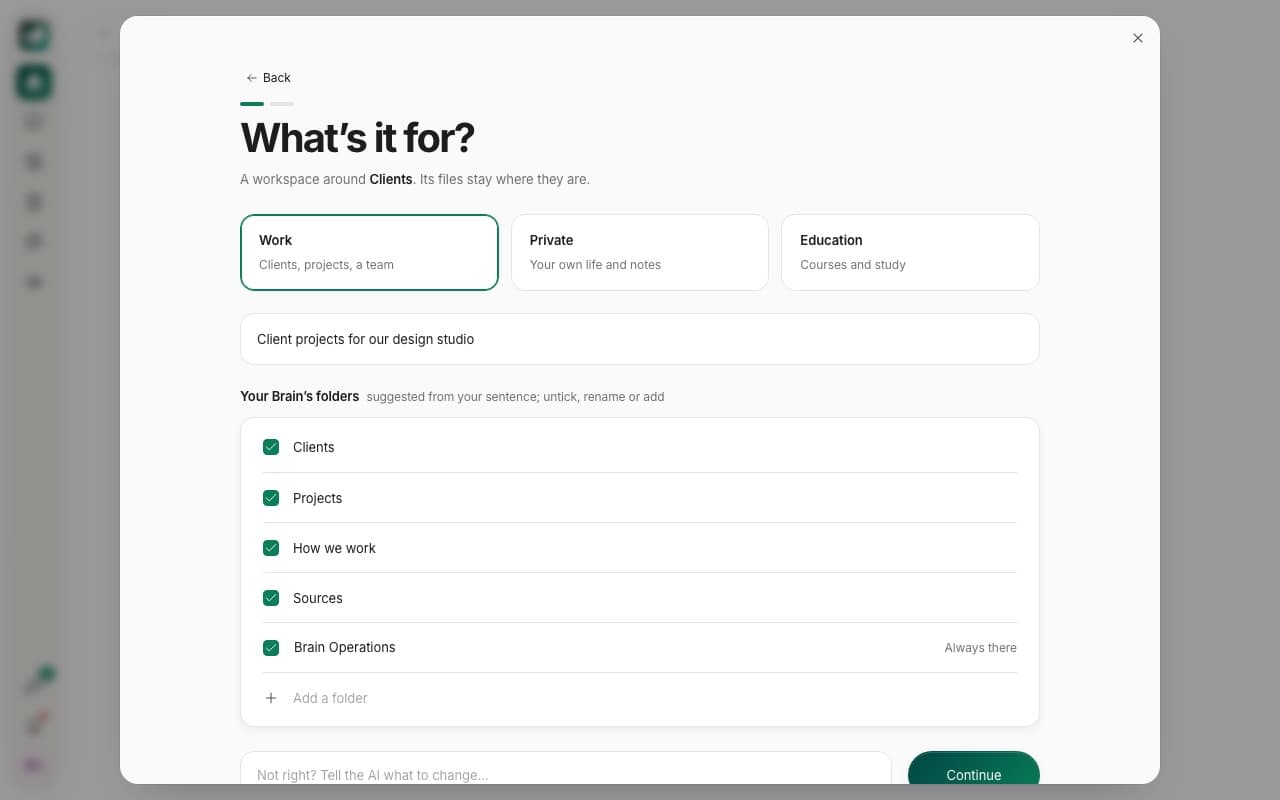
Pick Work, Private or Education, and write one sentence about it, for example “Client projects for our design studio”. From that sentence, HTO Labs suggests the folders of your Brain. The Brain is where HTO keeps notes about your work, so every chat starts from what you know. Untick, rename or add folders as you like.
Where it lives, and Create
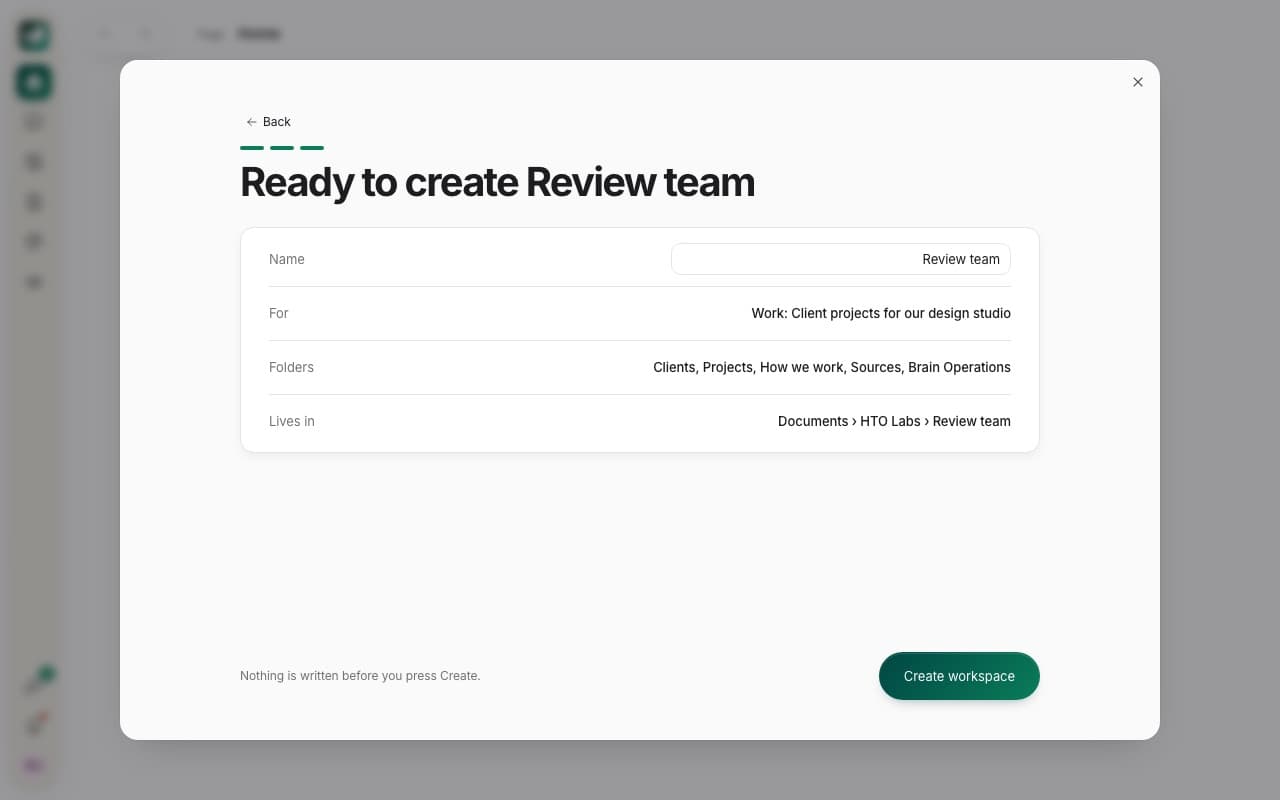
HTO Labs suggests a folder on your Mac for the workspace, such as Documents › HTO Labs. Press Use this folder, or Choose… another one. The last page shows the name, what it is for, the folders and where it lives. Nothing is written before you press Create workspace.
Tip: you can have more than one workspace, for example one for work and one private. Each has its own Brain.
Still stuck? Write to us, and a person at HTO & Beyond answers.