See what changed, and restore removed cards
Every change to a Workroom is written down, with who made it and when. A removed card stays in that record, so you can put it back.
Activity
Press the Activity button in the room’s top bar. Activity lists changes by day, then by person. A change your AI made shows its name and the chat it came from. Filter the list by person, or by kind of change, with Everyone and All changes.
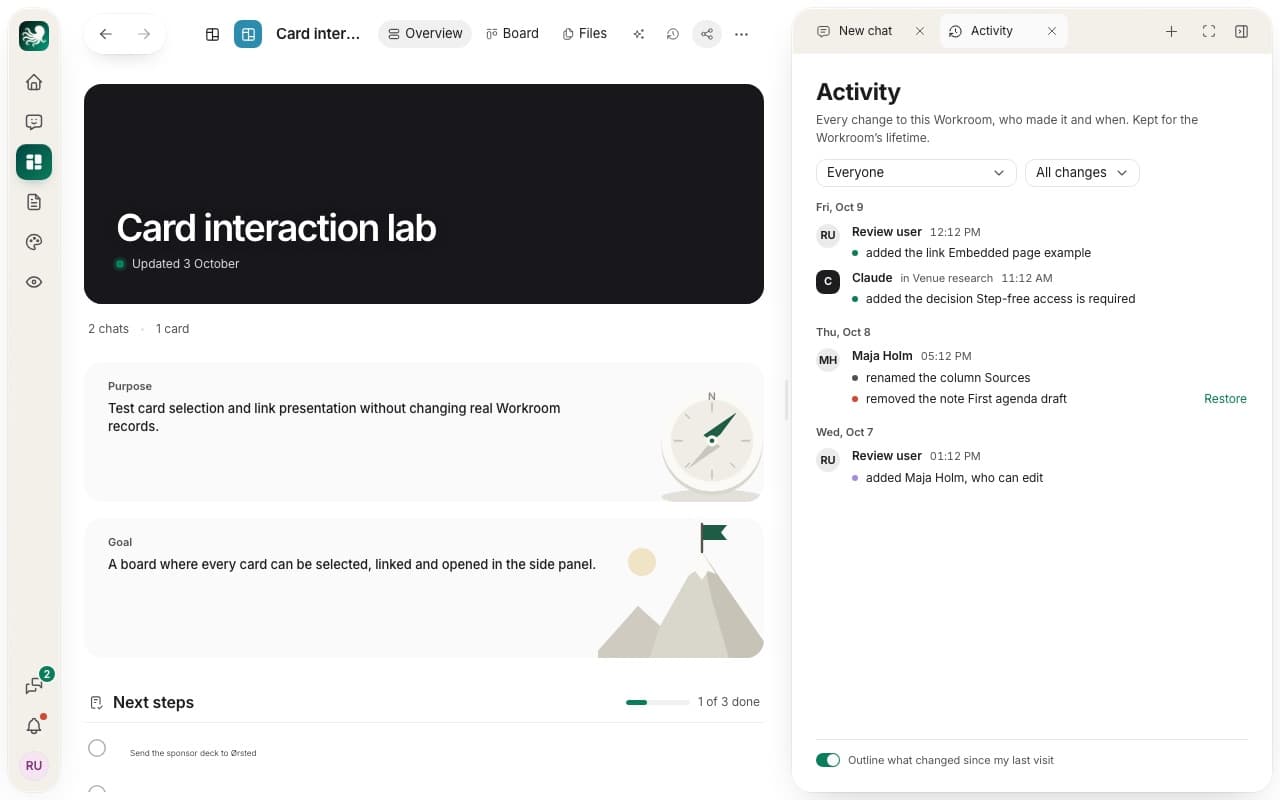
A line marks Since you were last here. With Outline what changed since my last visit switched on, the board outlines what others changed.
Remove a card
Choose a card and press Remove or Delete, or Remove from board in its panel. HTO Labs asks first, and you can write a reason. Files stay where they are. You need Can edit to remove a card.
Restore a card
In Activity, pick Removed from the list of changes. Press Restore beside a card, and it goes back where it was. A file the Workroom keeps in its own folder also has Delete file, which deletes it for good after you confirm.
Archive a Workroom
An owner archives a room from the … menu with Archive Workroom. HTO Labs deletes an archived Workroom 30 days later. The Studio items it made stay in Studio.
Tip: press Restore Workroom in the same menu to bring an archived room back within those 30 days.
Still stuck? Write to us, and a person at HTO & Beyond answers.