Invite people to a Workroom
Each Workroom has its own list of people. Its owners decide who is in it and what each person can do.
Add people
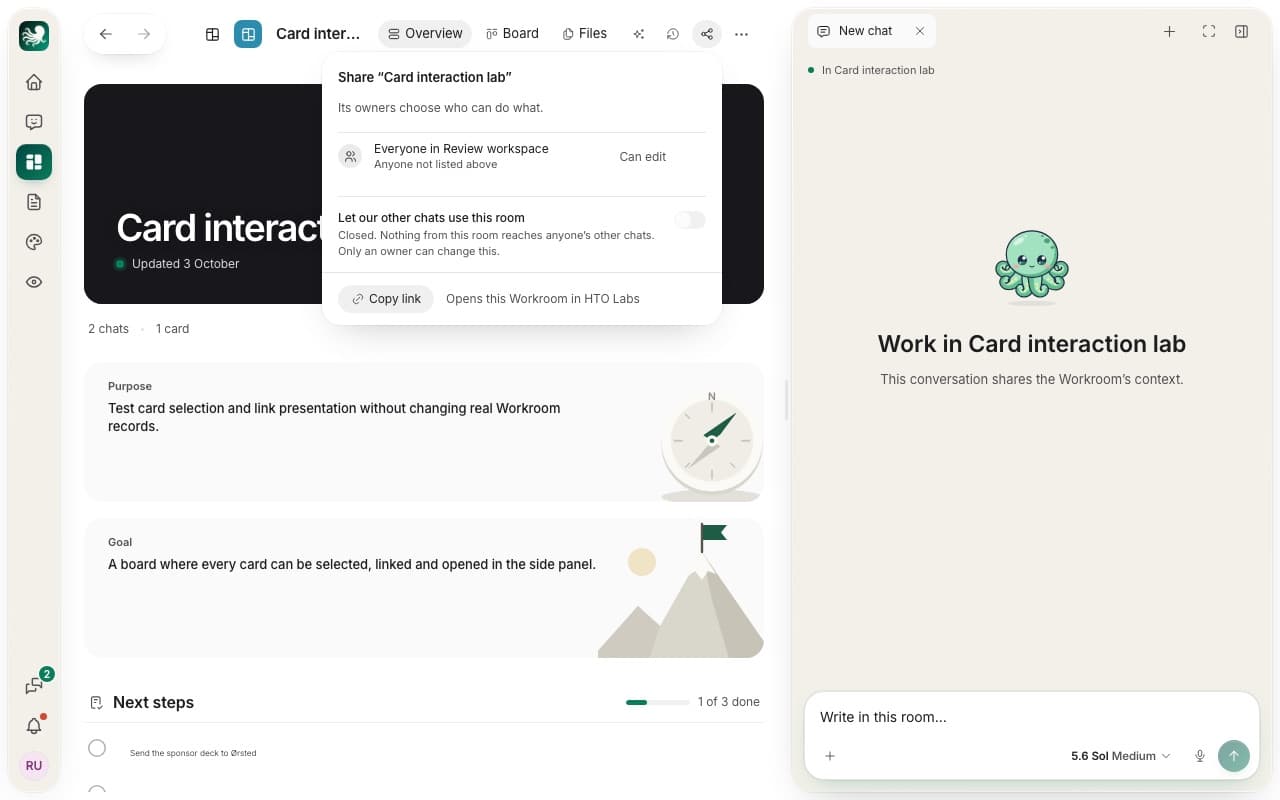
Press Share in the room’s top bar. As an owner, pick a person in Add someone from your workspace, choose their role and press Add. People join a Workroom from your workspace, so invite them to the team first. Read Bring your team in.
The four roles
| Role | What they can do |
|---|---|
| Owner | Everything, and also adds people, changes roles and archives the room. |
| Can edit | Chats in the room, changes the board and removes cards. |
| Can comment | Reads the room and writes comments. |
| Can view | Reads the room. |
Your AI works with the role of the person who wrote the message. A room keeps at least one owner, so make someone else an owner before you step down.
Everyone else in the workspace
The last row, Everyone in your workspace, sets the role for people you have not listed. A new Workroom lets them view. An owner can raise that to comment or edit.
Copy the link
Press Copy link and send it to a teammate. The link opens the Workroom in HTO Labs.
Tip: an owner can also switch on Let our other chats use this room. Then the room’s decisions and what it made reach each member’s own chats. Its chats, notes, comments and files stay in the room.
Still stuck? Write to us, and a person at HTO & Beyond answers.