Make a page by describing it
A page is a place in your workspace for something you look at often, such as a dashboard, a plan or a client overview. You write what you want in the page’s chat, and your AI builds the page for you.
What a page can be
A page can be anything a web page can be: a table of your projects, charts of this month’s sales, a calendar or a form. Your AI writes the page, so you describe it in plain words. Every page is in Pages, in the rail on the left, grouped by the page it sits under.
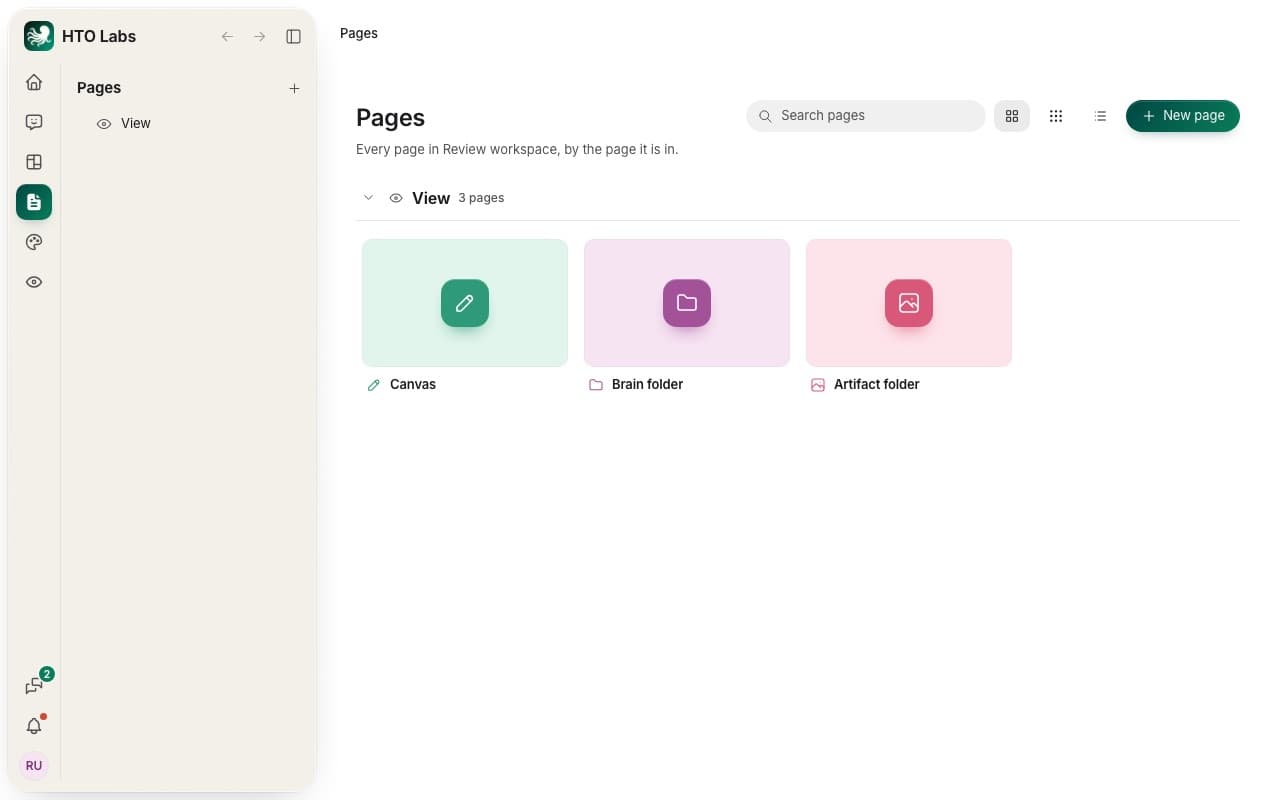
Make a page
On the Pages front page, press New page. You can also press + beside Pages in the sidebar. HTO Labs opens an empty page called New page.
The page’s chat sits on the right and says Work on this page. Write what you want, for example “A dashboard of our open client projects, with the due dates in a table.” Then send it.
Your AI builds the page and puts it in place when its answer is done.
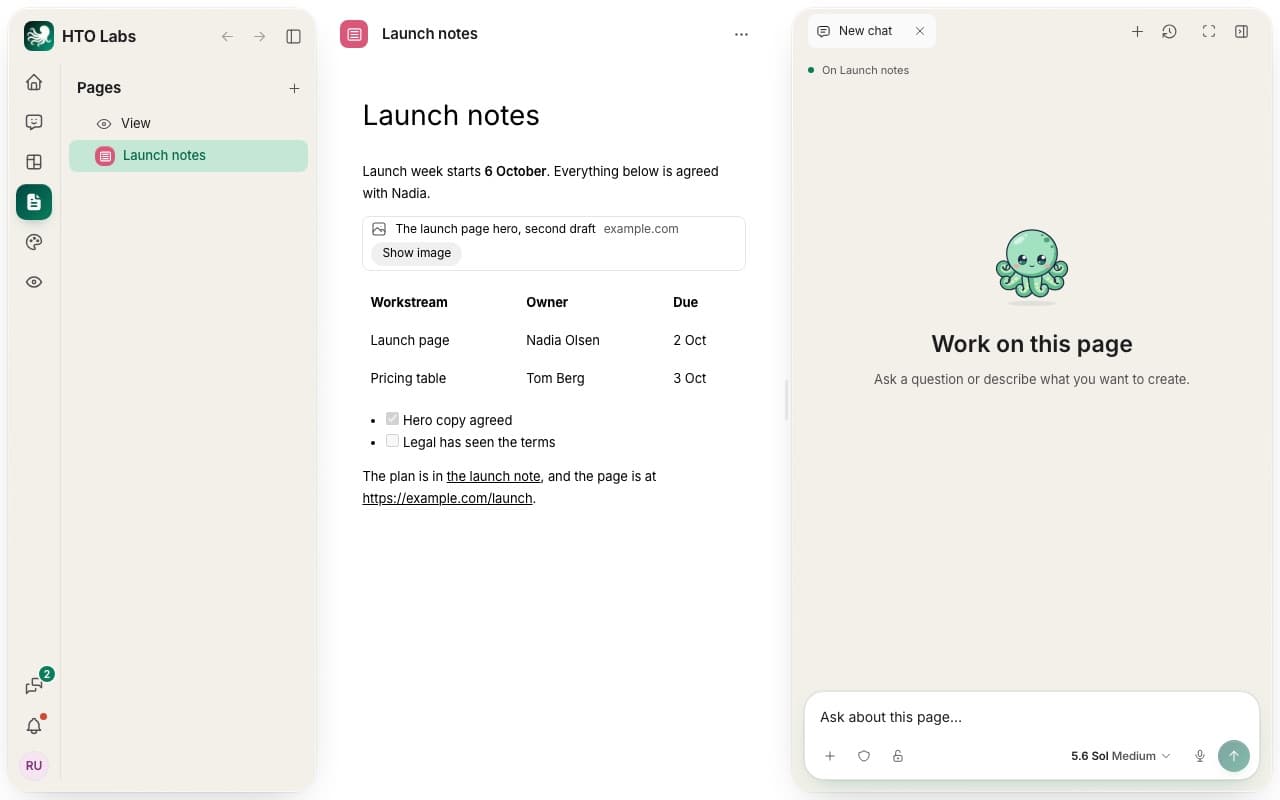
Change it with every message
Every message in the page’s chat changes the page. Ask for another chart, a new color or a shorter heading, and the AI builds the page again with that change. The clock at the top of the page shows who changed it last. Press it to see the page’s History, and press Restore beside a change to bring the page back to how it was then.
Pages with your own data
A page can show data from your connected accounts, such as your Airtable records or your Facebook Page’s posts. The first time a page wants to read an account, HTO Labs asks you. Press Allow, or Not now. The page only reads, and it asks you before any change. Read more in Let chats and pages use an account.
In the Mac app and on the web
Your AI builds pages in the Mac app. On the web at htolabs.com, you and your team open the same pages, and you can share and publish them.
Tip: to tidy up, open a page’s menu in the sidebar and choose Archive. Archived pages wait in Settings › Archive for 30 days. Then HTO Labs deletes them for good.
Still stuck? Write to us, and a person at HTO & Beyond answers.