Let chats and pages use an account
A connection you add in Settings stays out of your chats until you open it to them. You decide for each account, and then for each chat. Chats run in the HTO Labs Mac app, with whichever AI you use there.
Open an account to AI chats
In Settings › Connections, press Options on the account and switch on Use in AI chats. As the switch notes, content you send to AI may remain in that chat. An owner switches it on for a shared account. You switch it on for your personal ones.
Choose the accounts for one chat
Every account open to AI chats is on in each chat. To keep one out of a chat, press + in the message box, open Connections, and untick the account. Manage connections in the same menu opens Settings.
Files from your accounts
A chat reads a file from a connected account the way it reads a file you attach. That covers Word, PowerPoint, Excel, PDF and text files, and pictures. Ask, for example, “Summarize the PDF in the latest email from our accountant”, and the chat reads it from Outlook.
When a chat needs an account
When a chat needs a service you have yet to connect, it shows a card such as Connect Airtable. Press the button to sign in, or Not now. Once the account is connected, the chat carries on with it.
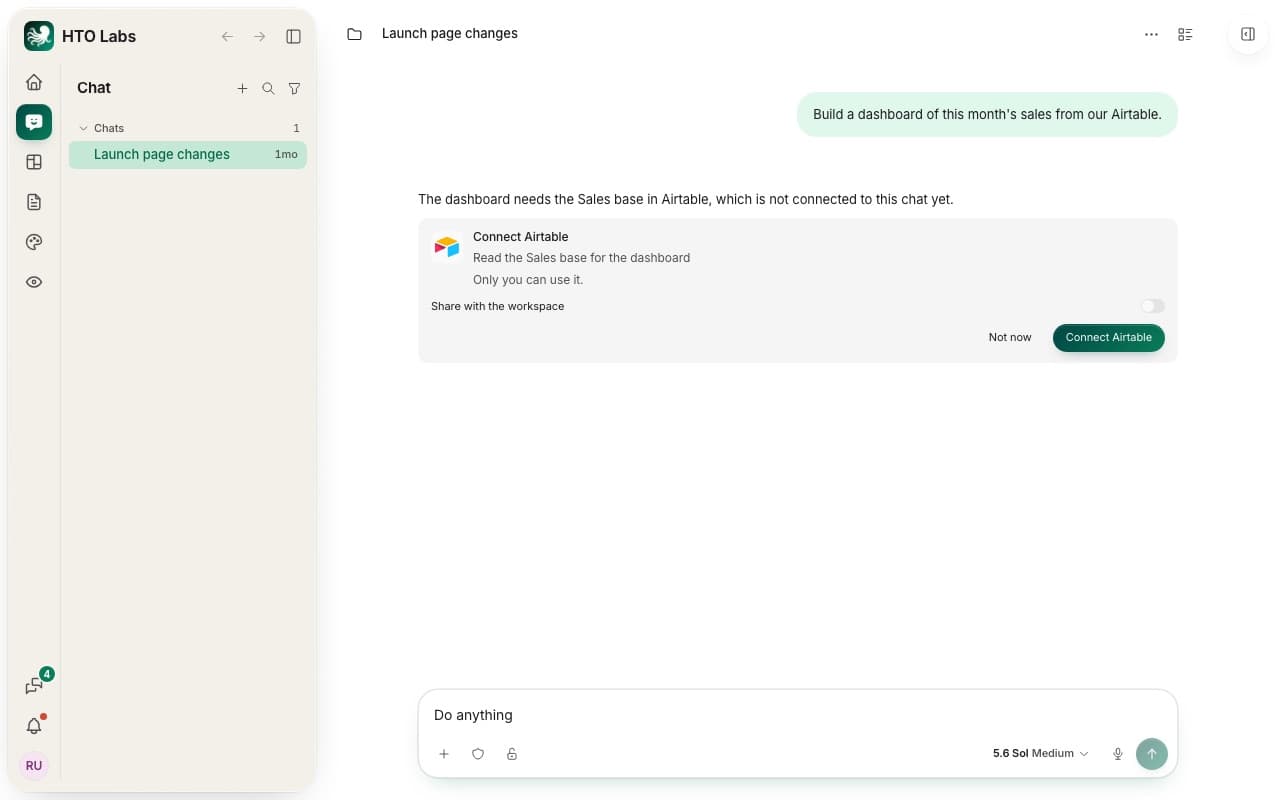
For a service outside the list, the card offers Make a request to have this added. We at HTO & Beyond then see that you asked for it.
Pages that read an account
A page that shows an account’s data asks before it reads, with a line such as “Sales dashboard wants to read Sales base”. Press Allow or Not now. The page only reads, and it asks you before any change. See Make a page by describing it.
Still stuck? Write to us, and a person at HTO & Beyond answers.