Help · Getting started · Step 5 of 5 · 3 min read
Bring your team in
When your team joins, everyone’s AI works from the same Brain. Your team joins your trial at no cost.
Right after sign-up
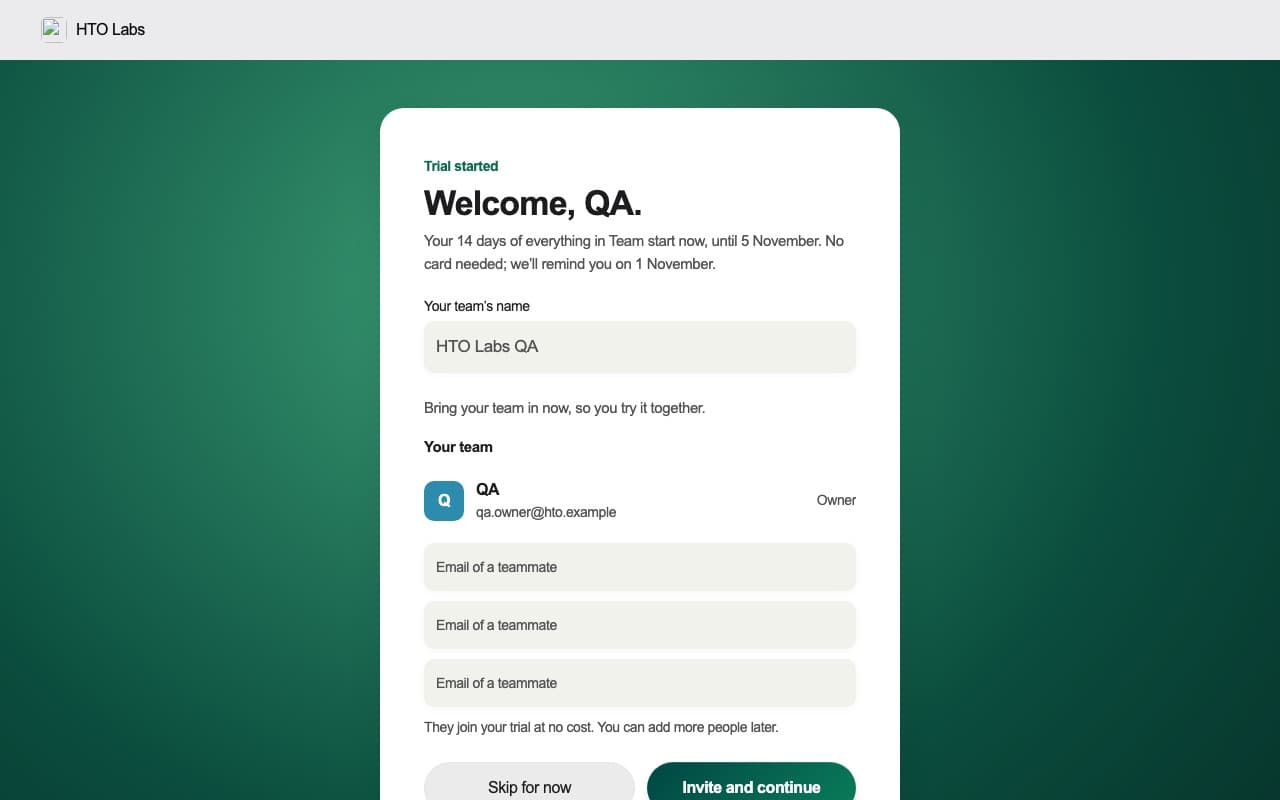
When your trial starts, you name your team and can write the email addresses of up to three teammates. Press Invite and continue, or Skip for now. Each person gets an email with a link to join.
Invite people later
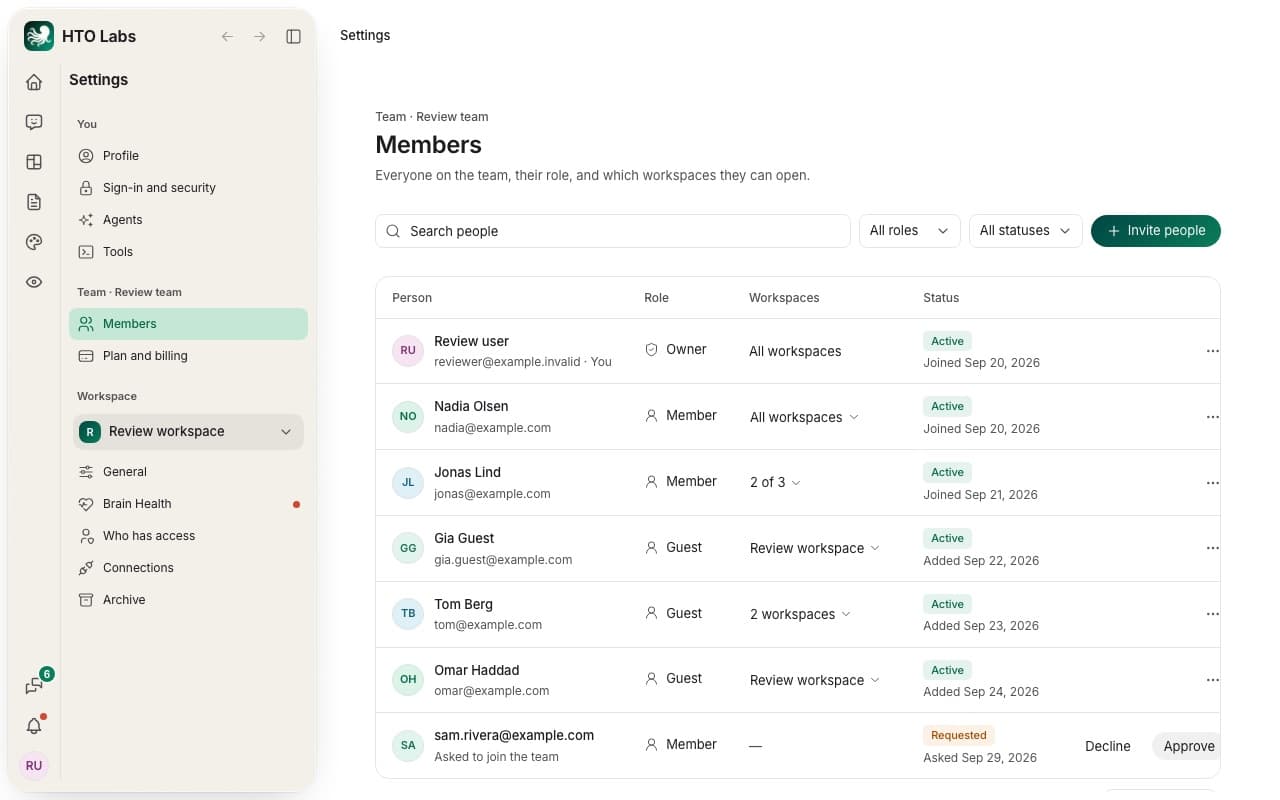
Open Settings › Members and press Invite people. Write the email address, choose what to invite them as, and press Send invitation. The list shows everyone, their role, the workspaces they can open, and invitations that wait.
Owners, members and guests
| Role | What they can do |
|---|---|
| Owner | Opens every workspace, invites and removes people, changes roles, and manages the plan. |
| Member | Works in the workspaces the team gives them. Members count toward a Team plan. |
| Guest | Opens exactly the workspaces you choose, such as one for a client. Guests are free. |
Tip: whoever signs in with an owner’s invitation becomes an owner, so check the address before you send it.
Still stuck? Write to us, and a person at HTO & Beyond answers.