What Chat is for
Chat is where you ask HTO to work on something. HTO answers with your own AI and starts from the notes in your Brain, so it already knows your clients and projects.
Start a chat
Press Chat in the bar on the left. Your chats are listed beside it.
The + at the top of the list starts a new chat.
Type in the box at the bottom and press Enter. Press Shift and Enter for a new line. The microphone button lets you speak your message.
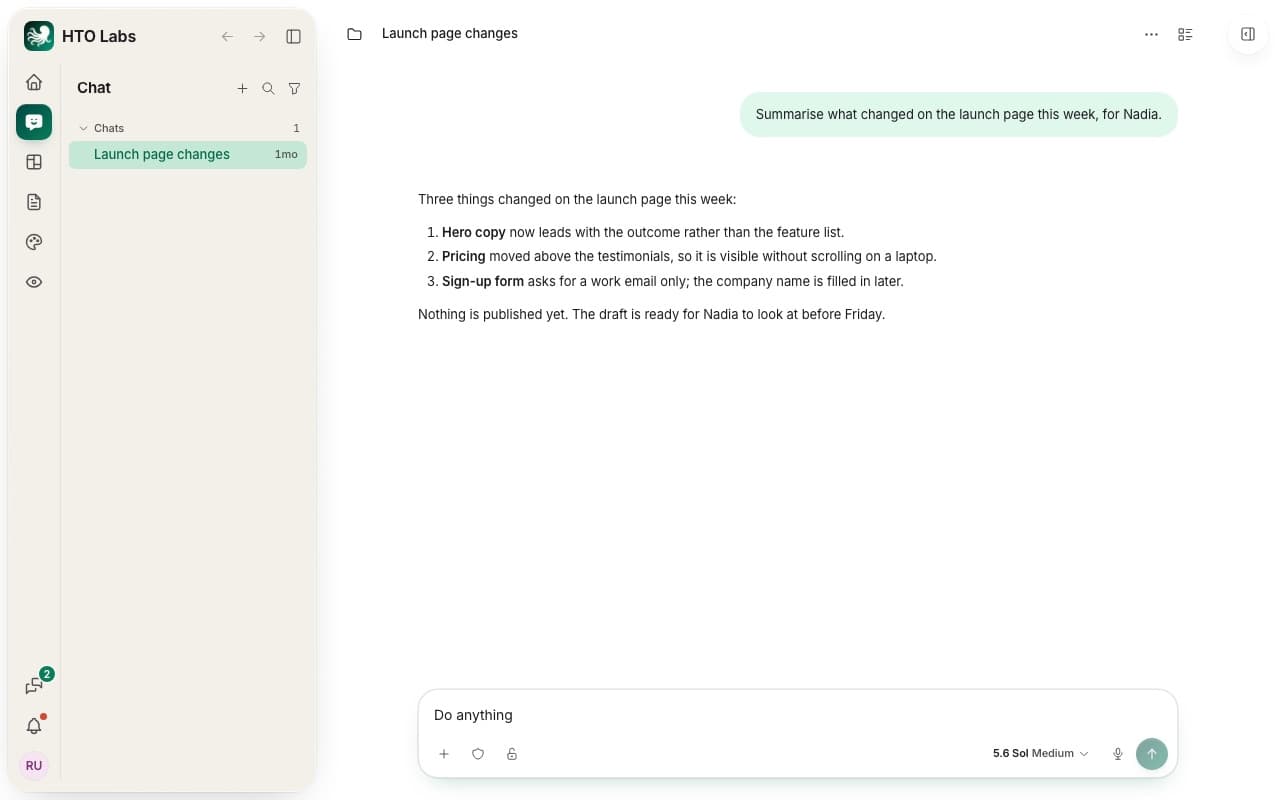
Chats run in the HTO Labs app on your Mac, because your AI runs there. Every page and Studio item also has a chat of its own, and it works the same way.
Add files and folders
Press + in the message box and choose Add photos and files or Add folder. You can also paste a file or drop it on the chat.
What a chat can make
- A document, deck or web page. When you ask for a plan or a report, HTO answers in the chat and offers to make it. Press Yes, make it or Not now.
- A page in your workspace. HTO shows a card with Create the page. The page’s own chat then builds it and carries on your conversation.
- A note to a teammate. HTO writes the note on a card. It goes to your teammate when you press Send.
See which chats need you
Each chat in the list says Working while HTO works and Needs you when it waits for your answer. A chat that finished while you were away keeps a mark until you open it. When HTO Labs is in the background, your Mac shows a notification.
Tip: the more your Brain holds, the better HTO answers. Read What the Brain is.
Still stuck? Write to us, and a person at HTO & Beyond answers.